Educator, Thinker, Consultant

Tag: #EduGlow

Periodic Table Personalities

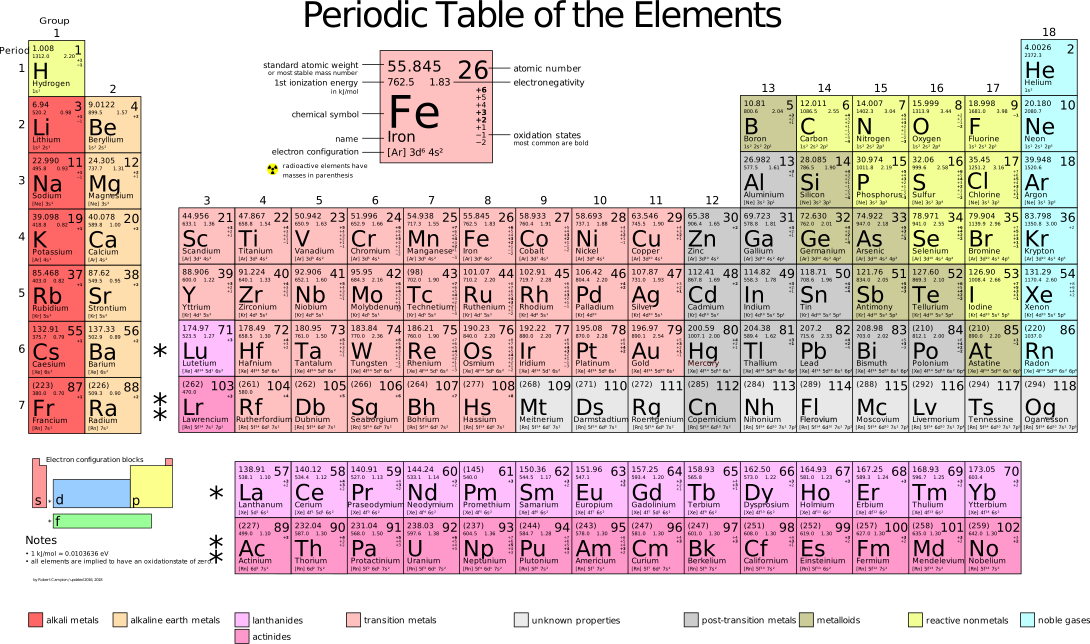
I’ve posted a “Periodic Table Personalities” resource over on Middle School Matters.

Periodic Table Personalities is the embodiment of the personification of those elements that make up our world.

Students simply answer a few questions about themselves to find that elemental connection. That’s right, students answer some (16) questions and then are presented with their “Element”.

Thanks to Shawn McGirr who developed this wonderful resource. This is an H5P activity that can be downloaded and reused.

Students Marking Up Digital Text

Recently, I was asked about having students “mark up” (annotating) digital text. The specific example involves students marking up a math problem. For example, the students are given a story problem. Each student identifies parts of the story problem by: 

  • Underline – (the question)
  • Circle – (the numbers and units)
  • Box – (math action words)
  • Line – (extra information)

Traditionally, this has been done by printing out the story problem on a sheet of paper (two per page), then cutting them up and passing them out to students. 

This is based on the CUBES strategy for math. However, the basics of this could be used for a variety of classes.

Can this be done digitally? 

Yes. 

I considered using Apple’s Freeform. However, since the teacher uses Canva and Google Classroom, it seemed best to go with those tools.

For this example, we are going to use the Whiteboard feature in Canva. 

  • Log in to Canva
  • Click on Classwork along the left-hand panel.
  • Select “Whiteboard”
  • Add in your story problem (cut and paste may work best)
  • Click on “Share”
  • Select “Google Classroom”
  • Select the Class in Google Classroom
  • Select the Share Action “Create assignment”
  • Enter appropriate Google Classroom information:
    • Title (Required)
    • Instructions (optional)
    • Assign to All Students or by group
    • Add a Due date (optional)
    • Add a Topic (optional)
    • Set Grading category (optional)
    • Set Points (optional)
  • Click Assign

Student Actions:

  • Students will see the Assignment in Google Classroom
  • Students click on “Use Template”
  • Students click on “Open in Editor”
  • Students will need to know how to use the whiteboard in Canva
    • Tools on the left side
    • Select Tools | The Red Marker | Blue Pen
  • Now students are ready to Mark up the document.
  • (*They can use other tools as well. The highlighter can be used in many colors. This is a great transferable skill that has many uses.)

The end result is that each student will get their own copy of the story problem on a whiteboard. Since it is a digital whiteboard, the students can mark it up as directed. 
Twine & Markdown

I’m working on my Fall ACTEM presentation. The presentation is on “Choose Your Own Adventure: Create An Adventure for Your Students”. Specifically, how you can create these for students. Or, better yet, how students can create these.

While working in Twine (I wrote about Twine previously), I wrote some things in Markdown. Since Twine doesn’t have a “viewer” window, pure text is what you see. I didn’t really expect Twine to display the markdown correctly, I was just entering it as a to way to remind myself to go back and format the text.

However, I clicked the “Test From Here” button, essentially a “preview” button, and lo and behold, Twine does display markdown as proper HTML.

Now, I know that I can use Twine while writing in Markdown. Yea!

Frayer Model

I’ve long been a fan of the Frayer Model. This is an easy to use, flexible graphic organizer that can help students understand concepts. It is most commonly used for vocabulary words, but can be extended as well.

The wonderful Alice Keeler posted a hint to create Frayer Models using Google Slides. This then reminded me of a Frayer Models in Moodle. I posted this several years ago, but I took this opportunity to update the post with some directions for Moodle 4.

I’m thinking that I should create a “Comic” of this using ComicLife 4.

AI Thoughts

I’ve been following AI in education for a while. I am discussing with teachers about how they are using it. Here’s the thing, the most popular real-world use case that I’m seeing is in creating multiple choice assessment options.

The second biggest use seems to be leveling material (and then creating multiple choice questions) for students. Leveling material changes the text to read at a different reading level. Leveling can be powerful. Like everything else in education, it needs to be used wisely and judiciously. Students need access to grade-level text on a regular basis.

Students are using it very differently, mostly to write stuff it seems.

It is interesting that almost all new resources seem to come back to traditional learning methods.

© 2026 Troy Patterson

Theme by Anders NorenUp ↑